Creating new Block Templates
In PROOF, a Block Template defines the structure and functionality of a Block, i.e. a Block is an instance of a Template. Such a Block can be reused multiple times in different workflows. Creating a new Block Template involves several steps, including defining the Block's inputs, outputs, and execution logic.
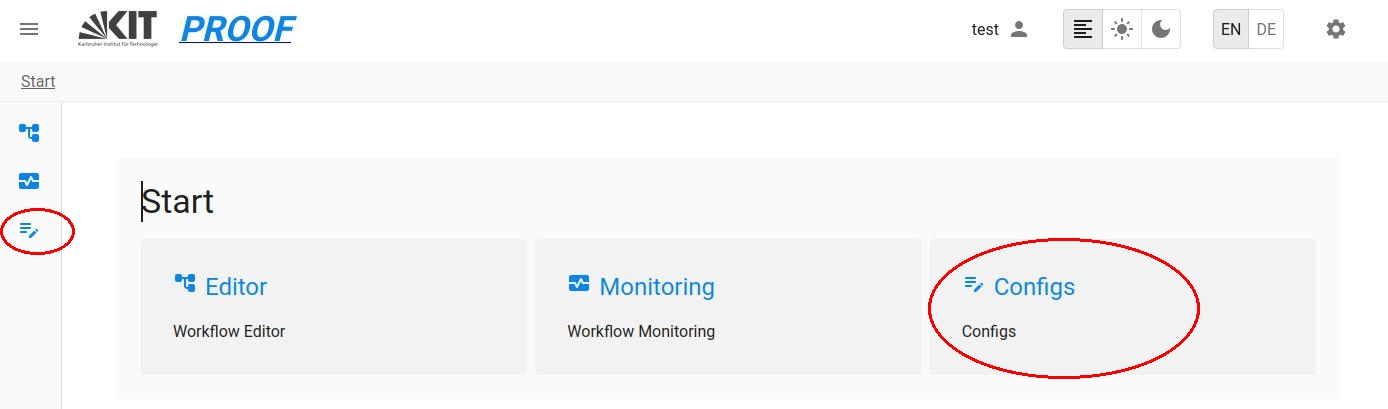
Creating new Templates offers the possibility to insert a desired behaviour or to implement specific functionalities or models to a Workflow. For this case you need to create a new Block Template that defines the structure and functionality of the block. This can be done with the PROOF UI and the menu config:
Structure of a Template
A Template consists of three main parts:
-
A Program entity that represents the physical simulation model as an executable file (such as a Python script, Java program, or MATLAB script) that contains the logic to be executed.
-
Optionally, additional files or dependencies required for the model's execution.
Steps to Create a New Template
-
Develop the Program:
Note: in the current PROOF version, only Python is supported. Therefore, the model file must be a Python script and the documentation hereafter refers to Python specifically.
Create the executable model file that contains the model's logic. This file should be able to run independently and perform the required computations. For this, you can use any programming language supported by PROOF (e.g., Python, Java, MATLAB).
This file will be the core of your Block Template. It can be built and should be able to be tested outside of PROOF to ensure it works as expected. - PYTHON: The model file must be a subclass of proofcore.base.basewrapper.py and implement the required methods for initialization, execution (step), and termination.
-
Identify Attachments
Attachments are additional files or dependencies required for the model's execution. They are attached to the Program entity and can include configuration files, libraries, or other resources needed by the model. One Attachment must be the model file created in step 1. This Attachment is called the entry point of the Program entity. Additional Attachments can be added as needed.
Create a Template in PROOF UI
To create a new Template in the PROOF UI, follow these steps:
(Note:) It's recommended to create the Attachments at first, followed by the Program creation and finally the Template creation.
-
Select the Config menu on the left side of the UI. Here you can select the desired button for the configuration or creation of new elements.
-
Create Attachments:
- Click on the Attachments button to open the Attachments management interface.
- Click on the "+ ADD" button to create a new Attachment.
- Fill in the required fields, such as ID, label, description, and upload the model file.
- Save the Attachment.
- Repeat this process for any additional Attachments needed for the Program.
-
Create a Program:
- Click on the Programs button to open the Programs management interface.
- Click on the "+ ADD" button to create a new Program.
- Fill in the required fields, such as ID, label, description, and select the previously created Attachments.
- Specify which Attachment is the entry point (the model file).
- Save the Program.
-
Create a Template:
- Click on the Templates button to open the Templates management interface.
- Click on the "+ ADD" button to create a new Template.
- Fill in the required fields, such as ID, label, description, and select the previously created Program.
- Define the inputs and outputs of the Template according to the model's requirements.
- Save the Template.
After having created a new Template, it can be used immediately to instantiate Blocks in Workflows using the PROOF Workflow Editor. You can find the Template in the right sidebar of the PROOF Workflow Editor and drag and drop it onto the Workflow canvas.